
Introduction
To connect to our EVC Reseller Database and access our custom Mappack files, we first need your unique WinOLS Customer ID. This ID allows us to authorize your workstation and transfer projects directly to your OLS software.
Step-by-Step Guide
- Open WinOLS: Launch the application on your computer.
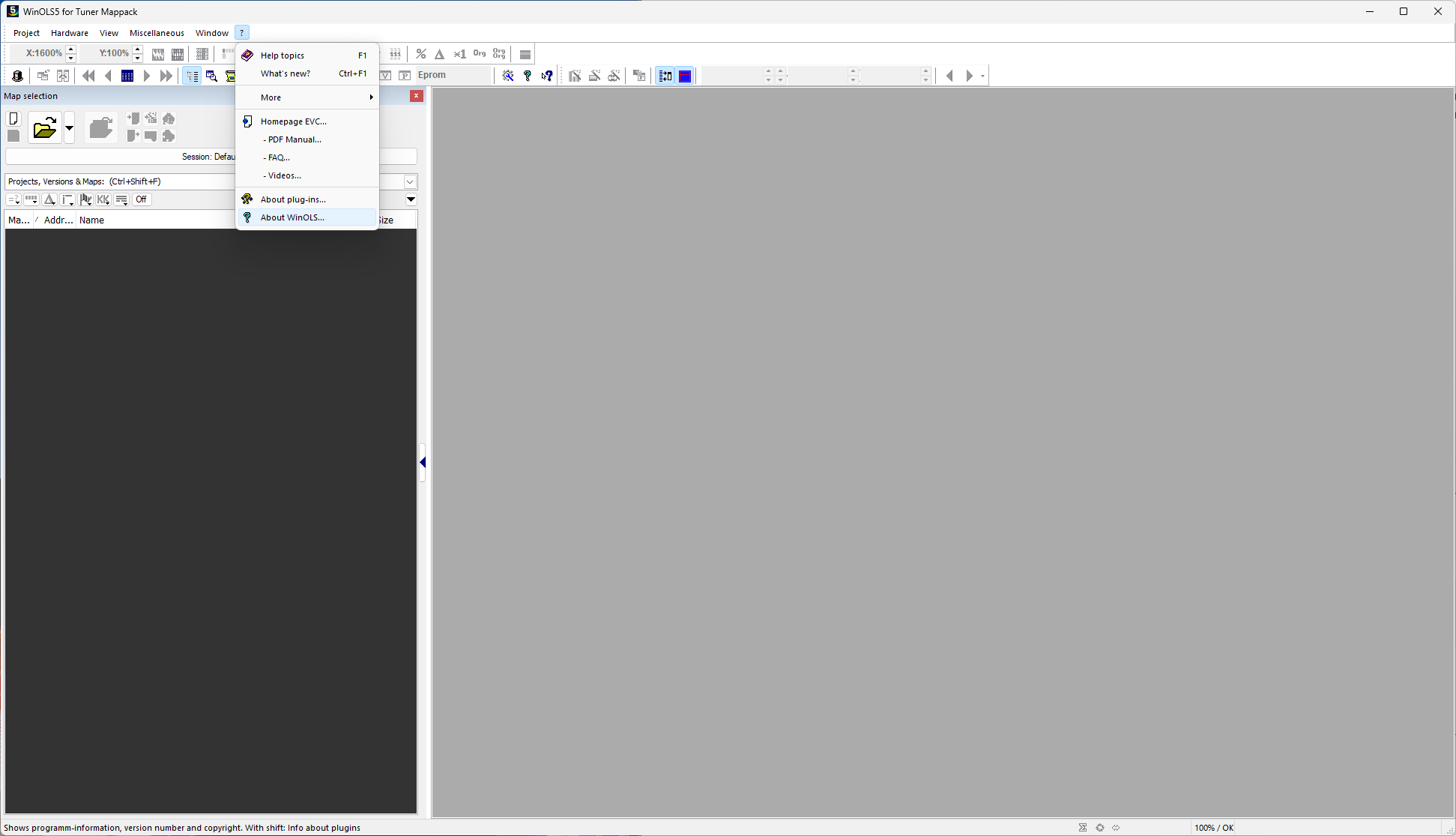
- Access the Help Menu: In the top menu bar, click on ‘?’ (Help).
- Select ‘About WinOLS’: A small window will pop up with your software details.
- Locate your ID: Look for the line that says “Customer ID” (it is usually a 4 or 5-digit number, e.g., 12345).
- Copy and Submit:Copy this number and enter it in the “WinOLS Customer ID” field during checkout or in your account settings. This allows us to link your purchase directly to your WinOLS.
💡 Pro Tip: Please make sure you provide the ID associated with the legal license you are using. The EVC reseller system only works with official, registered WinOLS versions.
Next Steps
Once we have your Customer ID, we will add you to our database. You will then be able to see our projects directly in your WinOLS under the “Client” or “Reseller” tab.